OBS Scene Tree View, VKCapture GUI, and More
What I’ve Been Working On
I’ve been working on a few projects lately. Nothing completely original, but they are things I wanted for myself and felt could help others. Plus, I really need to start writing blog posts.
KDE Plasma Taskbar with Right-Click Force Quit

This was, admittedly, a very specific need I wanted from Windows. I had used winutil on Windows to enable Force Quit on the taskbar, which is a godsend when you have a program that has hung and you don’t want to open Task Manager.
The way it works is that it takes the KDE Plasma Desktop project and extracts the KDE Task Manager code into its own directory. Then it applies the patches written to add the functionality.
While I was able to get it to work… it’s still in a rough state and not very stable. I’m not very knowledgeable about debugging KDE widgets, so for the moment, I will shelve this for the backlog.
OBS Scene Tree View

In my own OBS setup, I like to organize my sources into their own scenes. This allows me to easily include scenes within scenes so I don’t have to readjust my audio settings every time I set up a new scene for a different game. However, this results in A LOT of scenes, which can get… very messy.
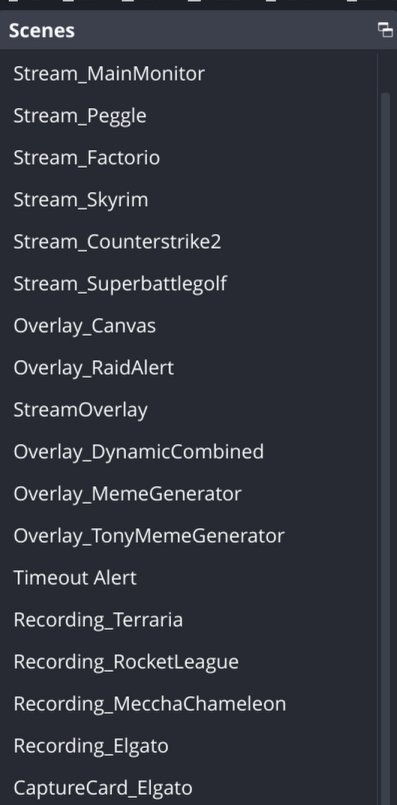
Finding the OBS Scene Tree View plugin was a godsend. It allowed me to organize all of my scenes into folders, making it much easier to find what I was looking for.
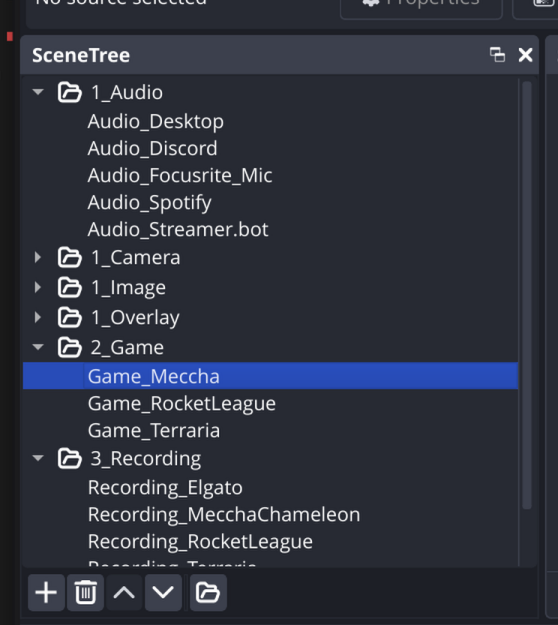
However, the plugin hadn’t been updated since 2022, and subsequent OBS updates eventually broke it in OBS 32. Thankfully, John Titor came along and fixed it for OBS 32. It still works, but as I used it more, I kept thinking… “Man, there are some additional features I would really like in here.”
Like:
- Sorting scenes alphabetically.
- Saving the location and state of the view (like which folders are open, and where the scroll bar is).
- Moving and deleting multiple scenes at once.
So, I went ahead and forked the project a few weeks ago and got to work (well LLMs did). All of my changes were pretty much “vibecoded,” but I did review them afterward to make sure everything still made sense.
After a few iterations, I got it to a point where I’m really happy with its behavior. I still need to go back and rewrite the README since it’s mostly from the original GitHub repo. I’ve also asked John if he wants me to send a PR or if he’s OK with me creating a new forum post. TBD.
If you want to use my iteration of the plugin, you can install it with the following commands:
Windows
irm https://raw.githubusercontent.com/anthonymendez/scene-tree-view/main/scripts/install-windows.ps1 | iex
Linux
curl -fsSL https://raw.githubusercontent.com/anthonymendez/scene-tree-view/main/scripts/install-linux.sh | bash
MacOS
curl -fsSL https://raw.githubusercontent.com/anthonymendez/scene-tree-view/main/scripts/install-macos.sh | bash
Linux Installer for Aitum Multistream Plugin for OBS
Pretty self-explanatory. I looked at the multistream plugin repo for instructions on installing it. Once I saw that they only provided a Debian package, I once again “vibecoded” some bash scripts to install the plugin on other distributions, specifically Arch-based systems.
The script can be extended to support other distros. I haven’t gotten around to implementing that since… well, I don’t use those distros, and I didn’t want to set up virtual machines just to test and install the package on them.
Installing the latest stable release is pretty straightforward:
bash -c "$(curl -fsSL https://raw.githubusercontent.com/anthonymendez/linux-install-obs-aitum-multistream/main/install-stable.sh)"
Or for the latest commit:
bash -c "$(curl -fsSL https://raw.githubusercontent.com/anthonymendez/linux-install-obs-aitum-multistream/main/install-dev.sh)"
The script handles building, installing, and adding the plugin to OBS.
obs-vkcapture Steam Launch Auto Config
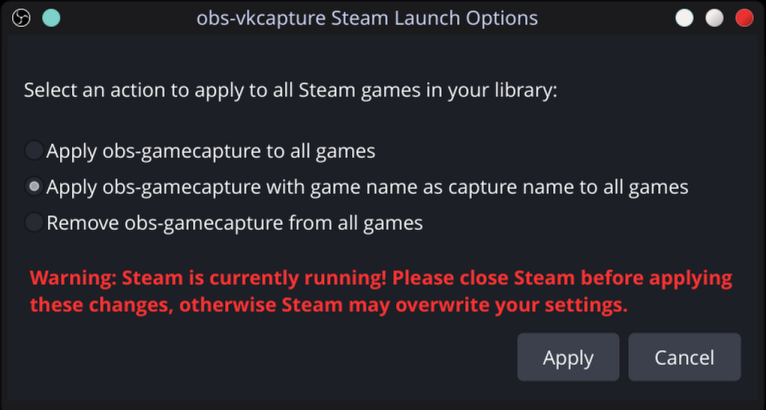
obs-vkcapture is a great tool if you want a Game Capture source on OBS on Linux, akin to Windows. However, the annoying part of this plugin is that you have to manually specify obs-gamecapture in each game’s launch parameters. Furthermore, it only works for the specific games you configure, so I wanted to extend the plugin to handle this automatically.
Once again, I “vibecoded” a GUI to make it easier to use. It adds an option under Tools in OBS called obs-vkcapture. When clicked, it asks if you want to add obs-gamecapture to all games and set the capture name to the name of the game. Alternatively, there’s an option to revert these launch configurations.
Currently, it only applies the settings globally and doesn’t mess with other existing launch parameters. So far, it works pretty well, and I’m happy with it.
I submitted a pull request with my changes to the project. I considered making it a standalone plugin, but I sent the PR first just in case.
Currently, if you want to use my variant, you’ll have to check out the SetGamecaptureArgs branch of my fork. Then run the build.sh and install.sh scripts to install it.