Microsoft is fixing Windows. Don’t Wait For Them. Do It Yourself.
This is based off some old instructions I wrote for my friends in this GitHub repo. I decided that writing an article would be a good way to share these instructions with others.
Windows sucks but you’re stuck
I’ll be honest. If I could’ve jumped ship from Windows, I would’ve. And I’ve tried. I attempted to run Linux (EndeavourOS - an Arch-based Linux distro). But I ran into more issues than was worth dealing with. I couldn’t play some anti-cheat games (and this situation as gotten worse for me now with the release of Battlefield 6). Affinity and Photoshop aren’t available for Linux. Davinci Resolve is available for Linux but setting it up isn’t… easy. Not to mention AAC and H264 support is not included with the free version.
Microsoft will fix it… but you can’t wait
Microsoft has publicly said, they’re committed to listening, and addressing the issues with Windows.
Every day, we hear from the community about how you experience Windows. And over the past several months, the team and I have spent a great deal of time analyzing your feedback. What came through was the voice of people who care deeply about Windows and want it to be better.
But good Software Engineering takes time. I wouldn’t know this however… don’t ask me how long I’ve worked in the industry.
Thankfully there are tools that make it super easy to make Windows a little less sucky.
How To Make Windows Less Sucky
BEFORE YOU START
- Backup your computer/personal files.
- Backblaze is an amazing option for this I personally use (not a paid sponsorship).
- MacriumReflect is another option I’ve used in the past.
What we’ll change
Before we get into the changes, I want to outline the changes we will make. It is important for you, the end user of this computer, to know what you’re going to change.
- Adding
End Taskwhen right clicking on a program in the task bar. No more opening up Task Manager to stop a hung program. - Disabling File Explorer auto discovery. This can slow down Windows A LOT.
- Disable Location Tracking. Self explanatory.
- Disabling Powershell 7 telemetry. If you don’t use Powershell, won’t impact you.
- Set services to manual. Background tasks that may be needed for some programs, will just run when the program that needs them is launched.
- Disabling telemetry. No more reporting to Microsoft our usage of the OS (as much as we can).
- Disable Windows Platform Binary Table. Prevents your computer vendor from executing programs on boot.
- Disable storing activity history, clipboard history, etc.
- Disable Windows Copilot.
- Disable news and interests in task bar.
- Other misc. privacy changes from O&O Shutup10.
- Windows Pro Only: Delay Windows Feature Updates by 1 Year and Security Updates by 4 days. This helps minimize the risk of feature updates completely breaking your system. It also makes sure you’re not missing security updates as well.
winutil
The basis of deshittifying Windows 11 is all done with Chris Titus’s winutil.
NOTE: There is the option creating a debloated Windows 11 ISO via win11creator in the tool. Personally, I haven’t used this tool. I’ve only used the microwin variant in the past. I may do a write-up on this in the future.
- Open the Windows Terminal via the Start Menu.
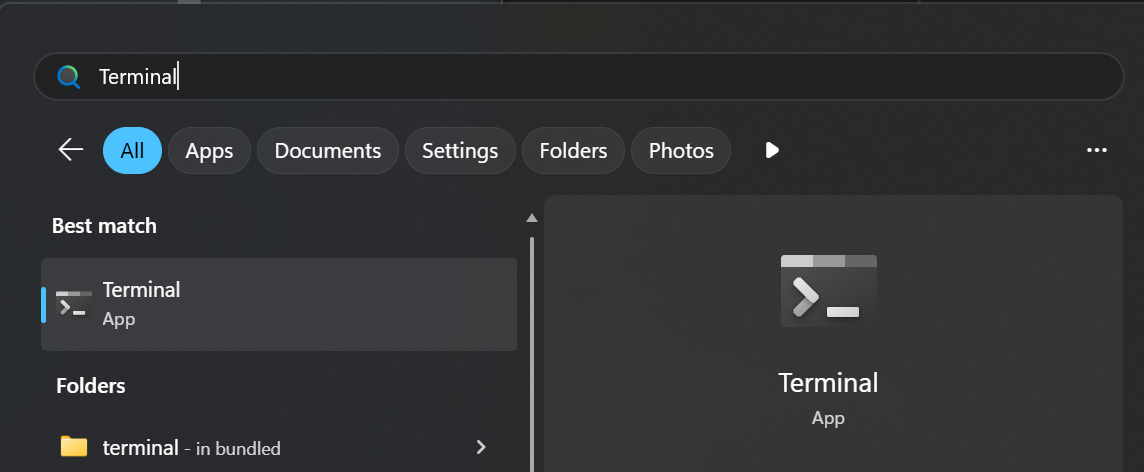
- Copy and paste
irm "https://christitus.com/win" | iexinto the terminal. - You will be prompted to give admin permissions to the Terminal. Click yes and a new terminal window will open up, along with the tool winutil.
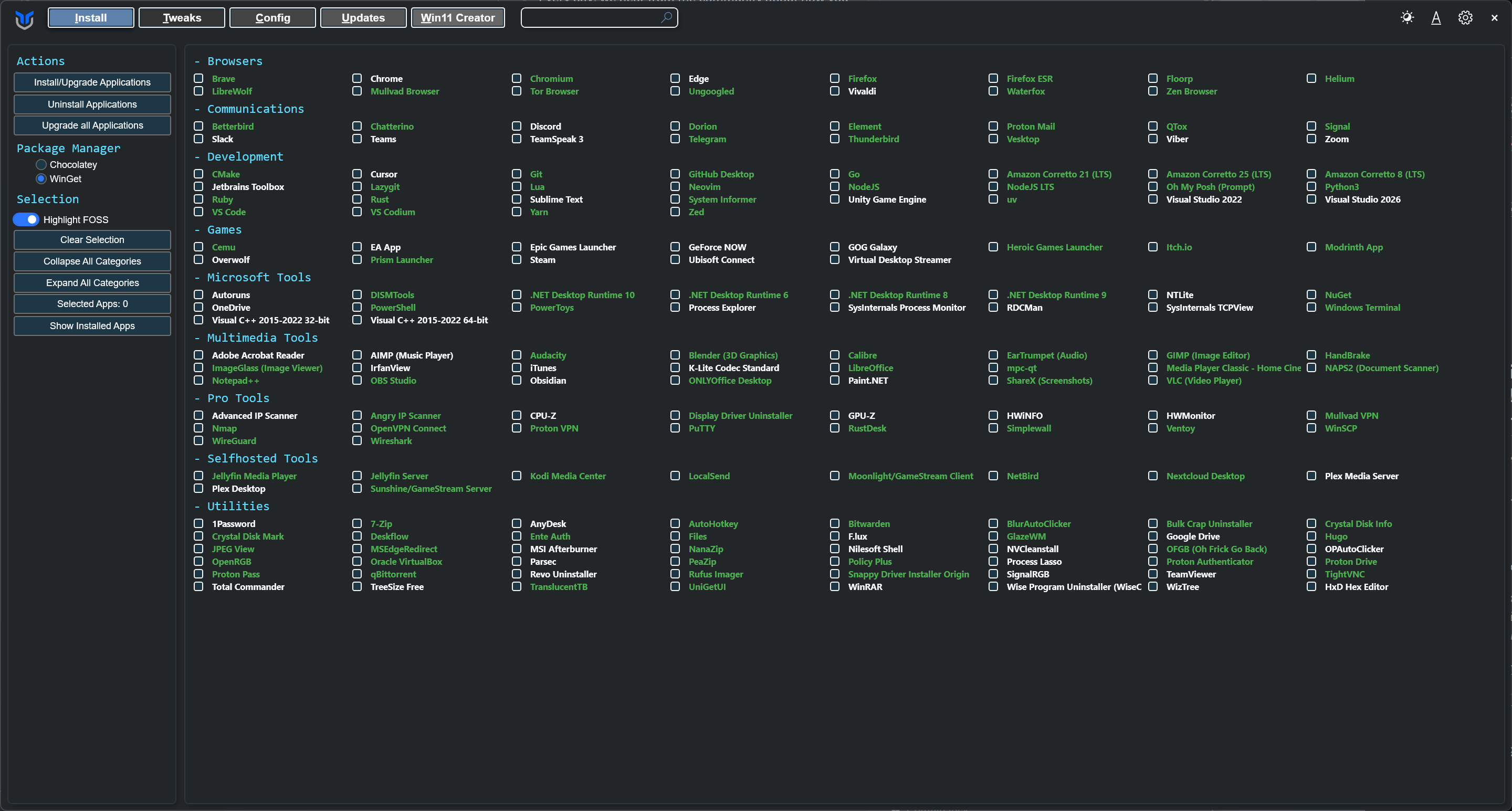
- If you want, you can install programs from here, but that’s not what we’re here for. Click the
Tweakstab.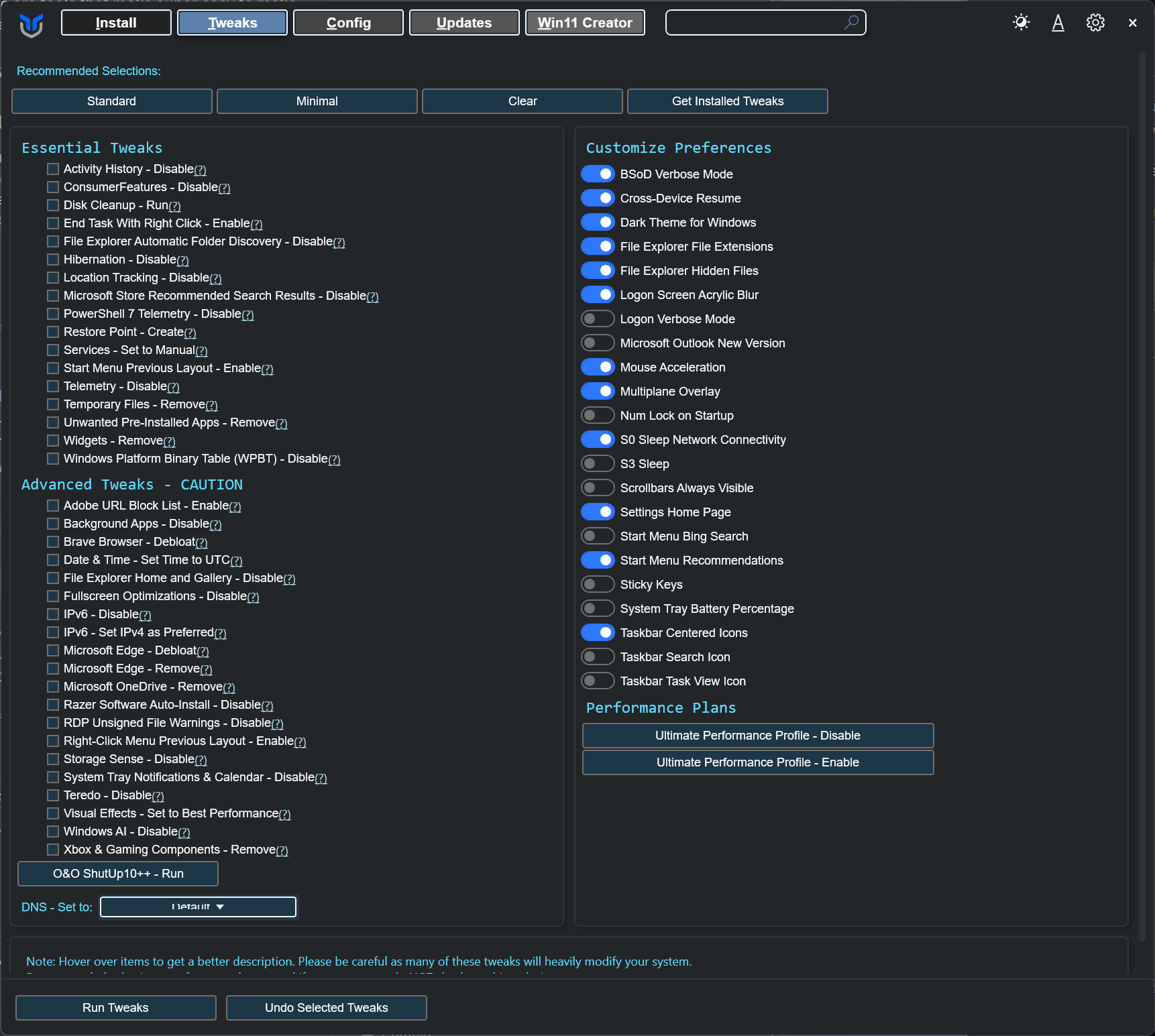
- If you’re a power user, you can make whatever tweaks you’re comfortable with. However, if the site of this makes you nervous, I recommend clicking
Standardand hittingRun Tweaks.
This will take some time as it will create a restore point, clean up temporary files, then apply all the changes.
- Feel free to customize your preferences under
Customize Preferenceson the right side as well! - Before we click off this page, Click on
O&O ShutUp10++ -Runat the bottom. A new window for O&O will open.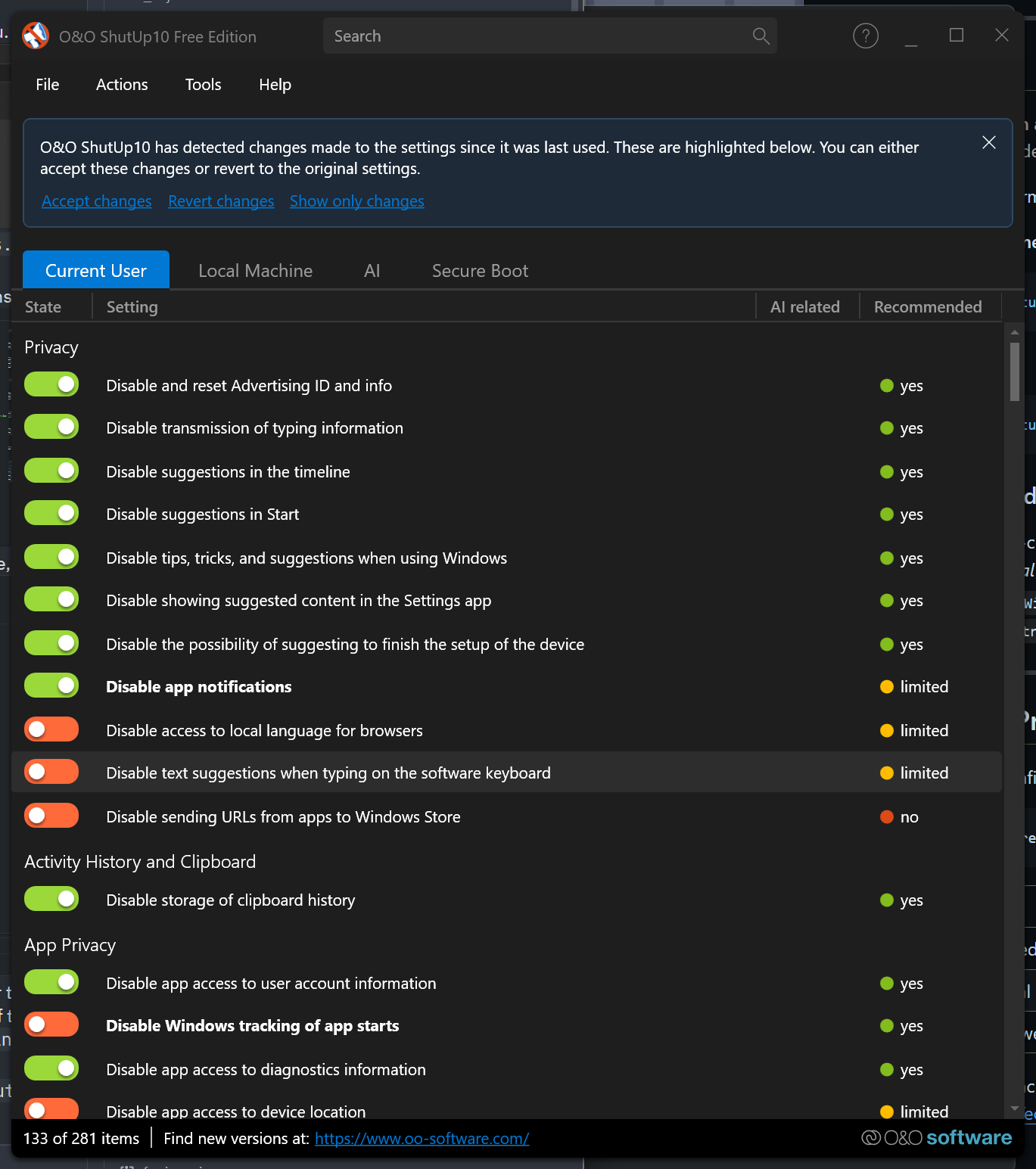
- Go to
Actionsand hitApply only recommended settings. It will ask if you want to create a system restore point. ClickYes.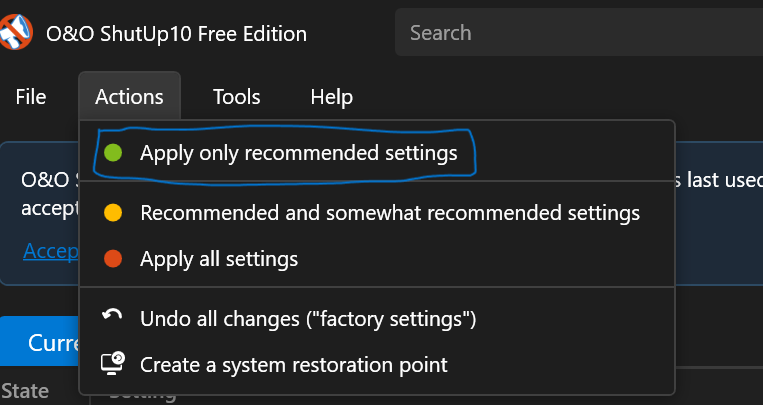
- Go back to the winutil window, and click on
Updates. - Click on
Security Settingsto modify your Windows Update configuration. - We’re done with winutil! Reboot your PC to make sure all changes are applied properly.
We’re still not completely done!
There are still some issues with Windows though.
- Keeping all your programs up to date is annoying and sucks.
- Windows Search just plain sucks.
And while out of scope of debloating Windows, adding these 2 programs will greatly help with making your Windows experience… not suck.
UniGetUi
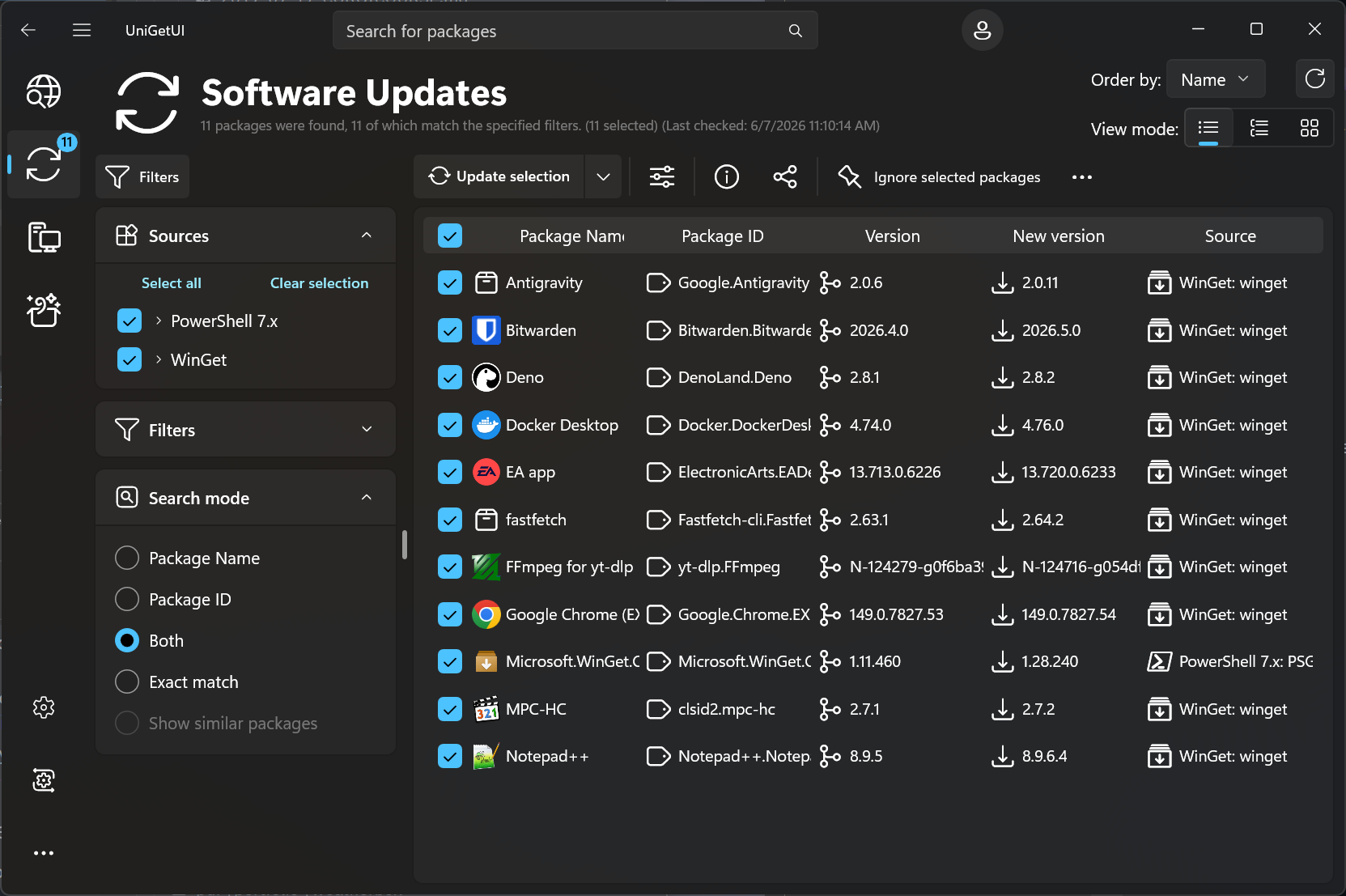
UniGetUi allows you to manage winget packages without having to touch the Terminal at all. You can install the program via the installer from Github (look for UniGetUI.Installer.x64.exe), or via the Terminal.
winget install --exact --id Devolutions.UniGetUI --source winget
I’m not going to get into how to use this program, as I think it’s pretty self explanatory of how to use it.
Everything
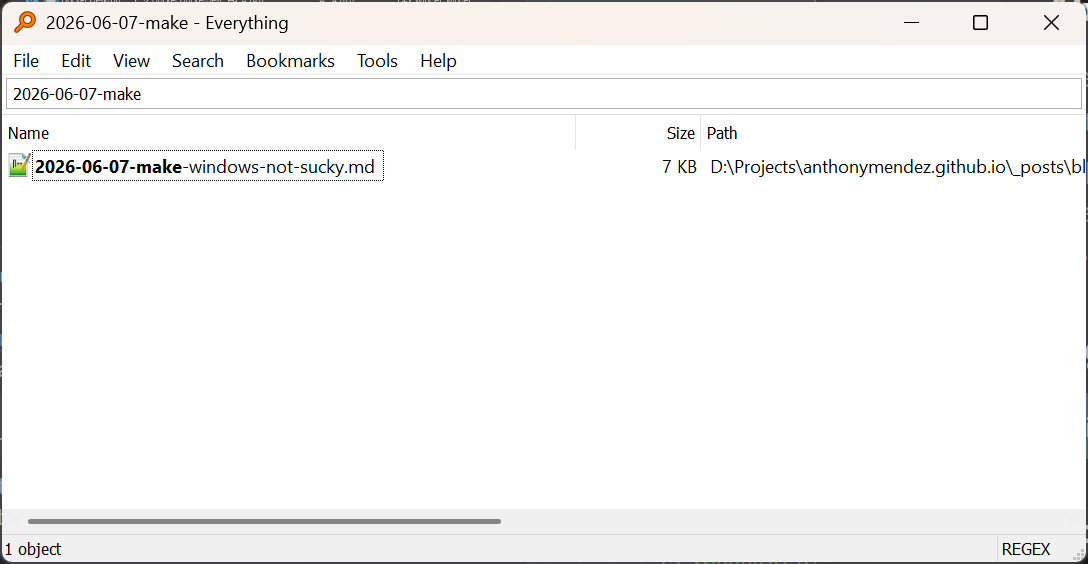
Don’t be misguided by the very boring UI. Everything search by voidtools is a must have for me ON ANY WINDOWS SYSTEM. It is a very powerful search tool that allows you to search for (as the name implies) EVERYTHING on your computer very quickly.
You’ll be able to search and sort for files based on the type, size, location, etc. IMO it would be worth learning a bit of regex to get really good at searching for stuff.
You can install it via the installer on the site, or via UniGetUi from the voidtools.Everything package!
(Alternatively you can also run winget install --exact --id Devolutions.UniGetUI --source winget in the Terminal).
And that’s it
By this point, you should have a Windows 11 system that:
- Has less Microsoft junk running.
- Should be more stable going forward.
- Easier to update all your programs.
- Easier to search all the files on your computer.
In a follow-up article, I’ll likely take a look at the Win11Creator tool within winutil.
Also if you can, considering sponsoring the winutil project!
Appendix
- winutil: https://github.com/ChrisTitusTech/winutil
- UniGetUi: https://github.com/devolutions/unigetui
- Everything: https://www.voidtools.com/
- Learn Regex: https://regexlearn.com/
- Windows Insider Blog Post: https://blogs.windows.com/windows-insider/2026/03/20/our-commitment-to-windows-quality/
- Backblaze: https://www.backblaze.com/cloud-backup/personal
- Macrium Reflect: https://www.macrium.com/reflectfree